NoQR app icon

NoQR

Get NoQR on Google Play
Important for anyone using a UPI ID: Scammers may use fake QR codes, Wi-Fi names, or UPI IDs that look similar to a real business’s details. Before making a transaction using a UPI ID, ensure that the bank-registered recipient name shown in your UPI app matches the person or business you are transacting with.

What is NoQR?

NoQR is an Android utility for discovering nearby UPI IDs through Wi-Fi names and keeping your own QR codes in one place. It does not process or approve transactions.

It is intended for people who understand UPI IDs and the safety checks needed when using them. If you are new to UPI, read NPCI’s overview of UPI first.

What you can do

Find nearby UPI IDs with Wi-Fi

For a business: advertise a UPI ID

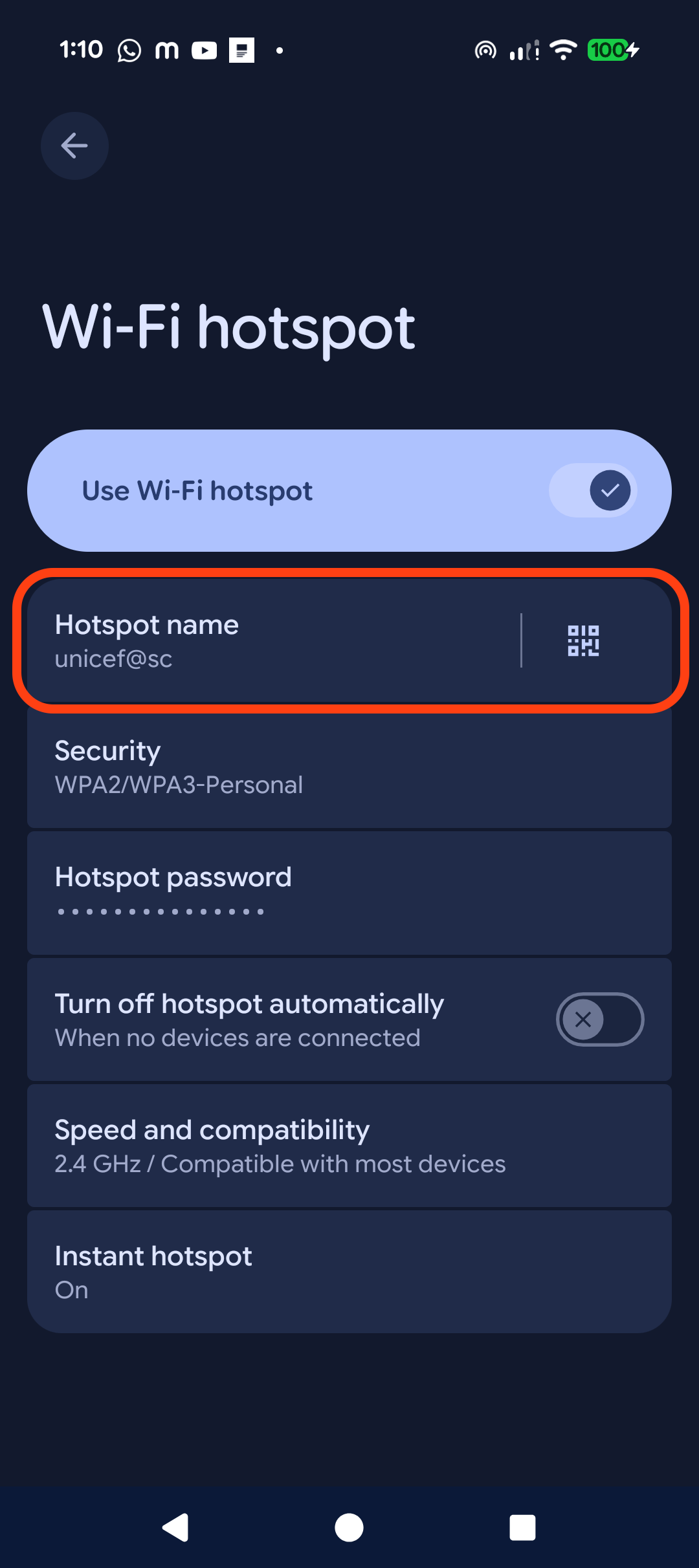
  1. On a separate phone hotspot or Wi-Fi router, set the Wi-Fi name (SSID) to the business UPI ID. Do not use the same phone that runs NoQR. Wi-Fi names have a 32-character limit.
  2. Keep the hotspot on during business hours. Customers do not need to connect to it; its name is only used to advertise the UPI ID nearby.
Wi-Fi name set to a UPI ID
Make sure the Wi-Fi name exactly matches the intended bank-registered UPI ID. Customers must still verify the recipient name in their UPI app before approving.

For a customer: discover and use an ID

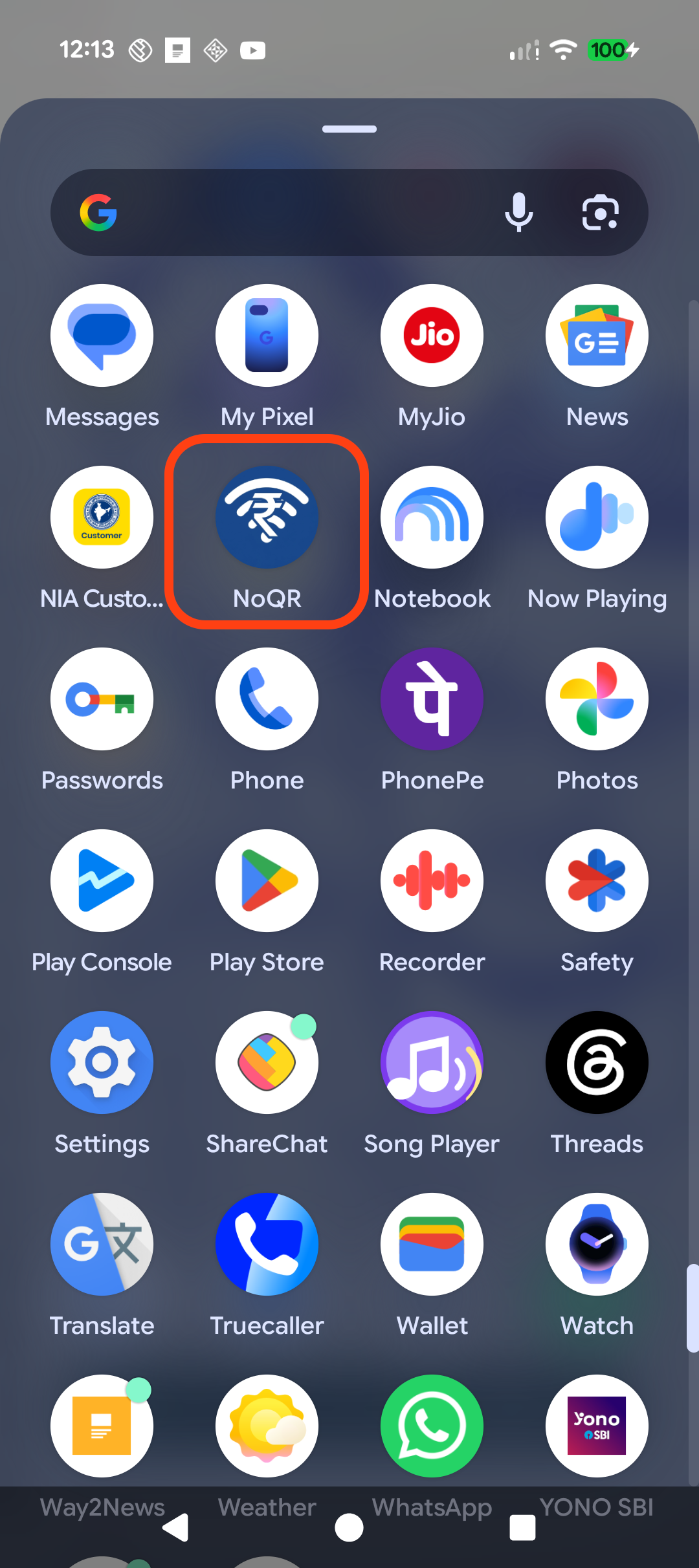
  1. Install NoQR from Google Play, then open it from the app list.
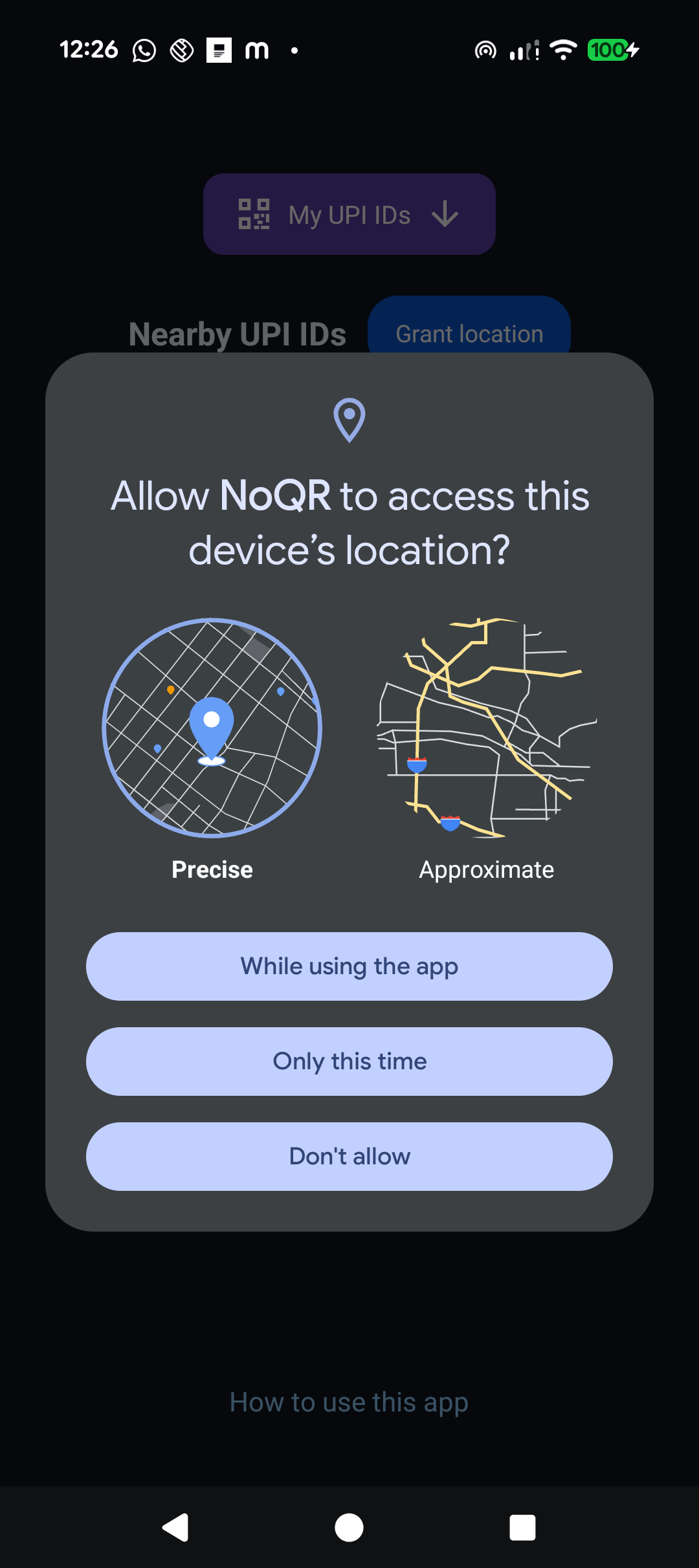
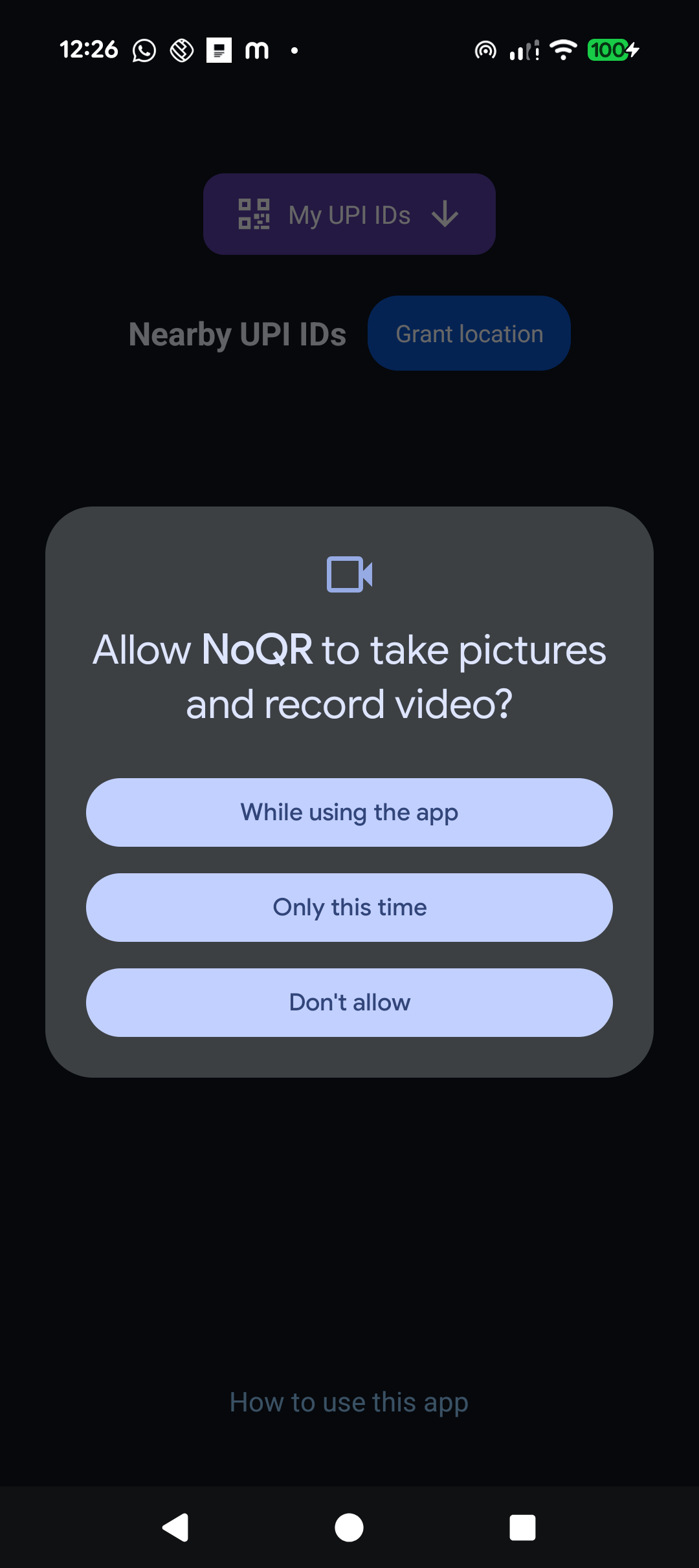
  2. When Android asks on first opening NoQR, allow precise location access for nearby Wi-Fi discovery and camera access for the scan option in My UPI IDs.
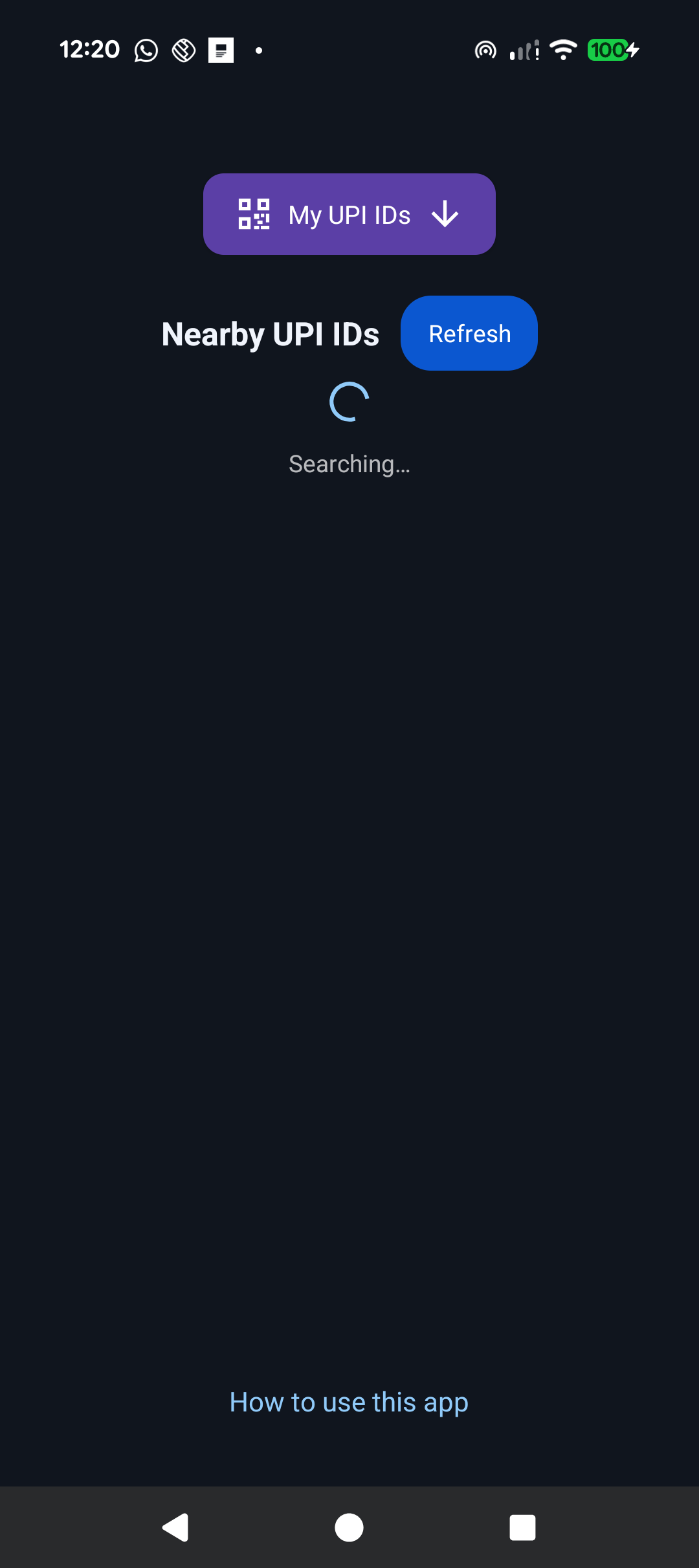
  3. NoQR starts looking for nearby advertised UPI IDs. Use Refresh to search again, then select the ID you intend to use.
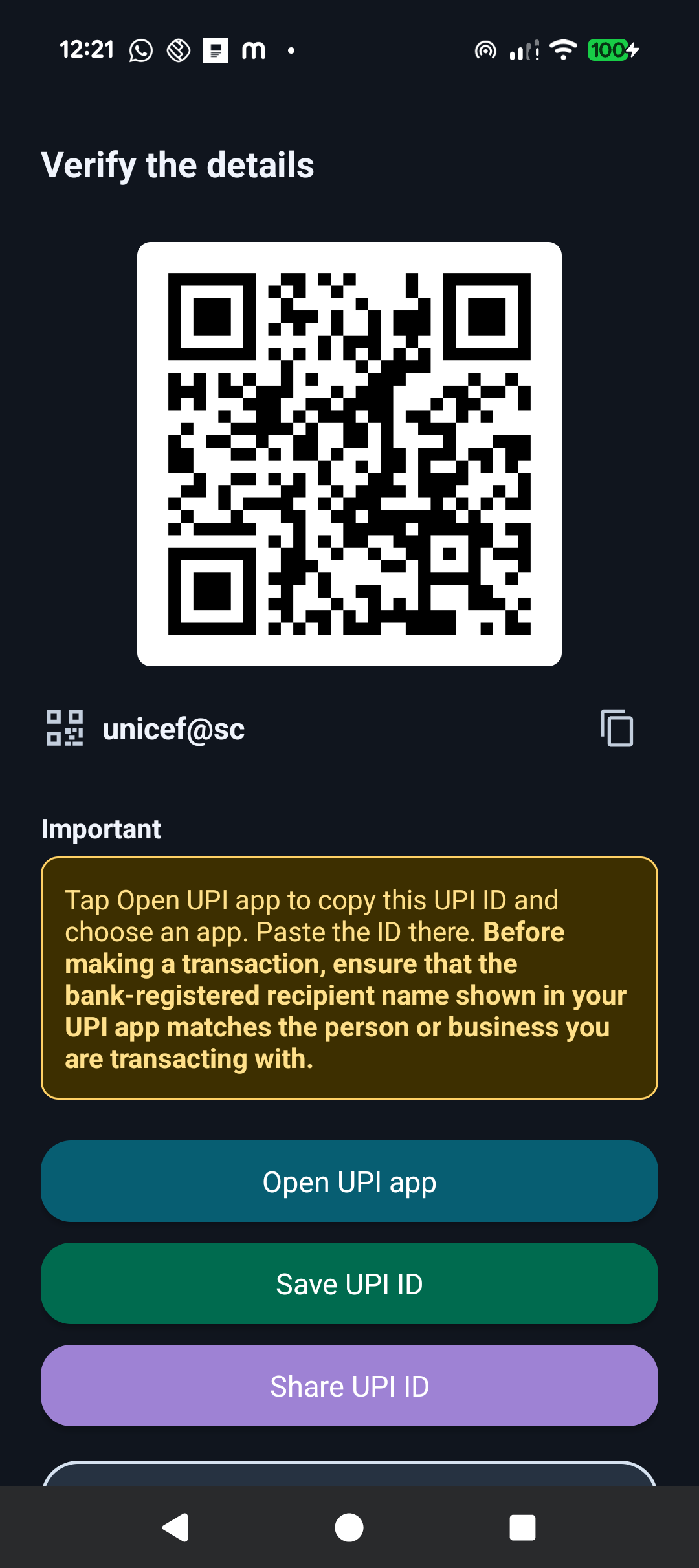
  4. Review the selected UPI ID and QR code. You can copy the ID, save it to Saved QR codes, share it, or open an installed UPI app.
Opening NoQR from the Android app list
Android precise location permission for nearby Wi-Fi discovery
Android camera permission for scanning a UPI QR code
NoQR searching nearby UPI IDs with Refresh
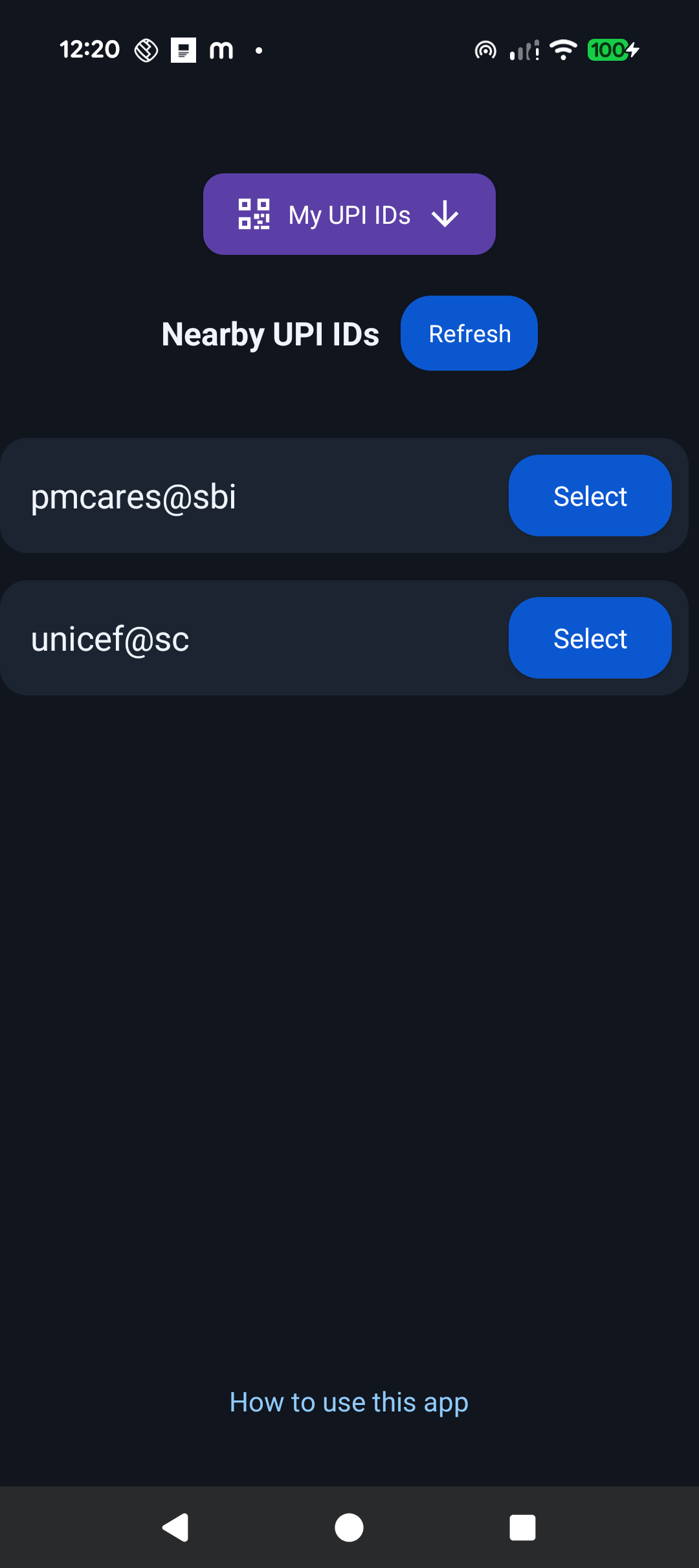
List of nearby discovered UPI IDs
Selected UPI ID with copy, save, share, and app options

Using the selected UPI ID

Tap Open UPI app to copy the selected UPI ID and see a list of installed supported UPI apps. Choose one, paste the ID there, and continue in that app. NoQR does not send a payment link, amount, or transaction details to the UPI app.

Once your UPI app shows the recipient details, verify that the bank-registered recipient name matches the intended person or business before approving.

My UPI IDs

  1. Open My UPI IDs and choose Add UPI ID.
  2. Enter a UPI ID. Name is optional; if it is blank, NoQR uses the UPI ID as the name. The scan icon inside the UPI ID field can fill the ID from an existing QR code.
  3. Tap Save. Entries are saved on the device and shown in one list.
  4. Open an entry to display the QR code. From there you can Share, Edit, Delete, copy the UPI ID, or open an installed UPI app after the ID has been copied.
Before saving or sharing a QR code, double-check its UPI ID. Tell anyone who uses it to verify the bank-registered recipient name in their UPI app.

Security checks

Where NoQR helps

Here are a few situations where it can be useful. Saved QR codes stay on your device; NoQR does not send them to its own servers. Android Backup may include them if it is enabled in your device settings.

Keeping QR codes together

When several QR codes are saved as images, finding the right one in a gallery can take time. It can also be hard to tell which image belongs to which UPI ID.

With NoQR: Saved QR codes keeps named QR codes in one list, where you can find, display, update, delete, or share them without manually saving images in your gallery.

Changing the receiving account

Businesses may need to change the bank account or UPI ID used to receive funds. Every printed QR copy then has to be found and replaced across counters and locations. Old stickers may leave layers, tape marks, and an untidy look.

With NoQR: the business can update the advertised UPI ID in one place by renaming its Wi-Fi hotspot instead of replacing every QR code.
Notes

What if no nearby UPI IDs are found?

Ask the business for its UPI ID or use its regular QR code in your usual UPI app.

Does NoQR support phone numbers?

No. NoQR supports UPI IDs only and does not display or use phone numbers.

Where are My UPI IDs stored?

They are stored locally on your device. They are not uploaded to a NoQR server. Android Backup may restore them when you move to another device, depending on your device settings.

How are nearby UPI IDs ordered when there are many nearby businesses?

When multiple businesses are nearby, NoQR shows the advertised UPI IDs with the strongest Wi-Fi signal first, making closer signals easier to discover. The first item is not a recommendation or verification, so choose the business you intend to use and ensure the bank-registered recipient name shown in your UPI app matches that business before making a transaction.

Does NoQR verify a business or recipient?

No. It only helps find, copy, share, or display a UPI ID. The bank-registered recipient name in your UPI app is the final check.

How do I report an issue?

Email noqr-feedback@googlegroups.com with a short description, your phone model, and Android version if available.